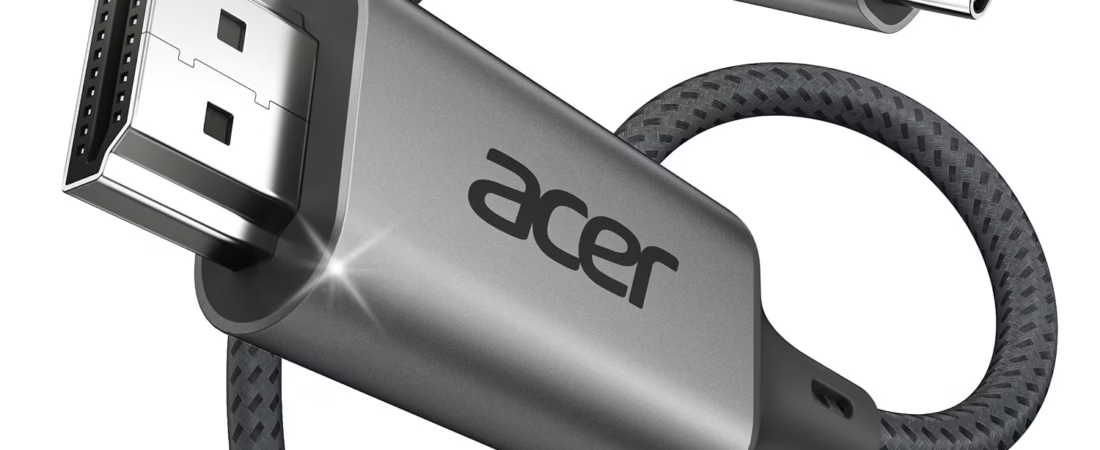
Modern laptops are increasingly designed around USB-C connectivity. While USB-C can handle many different types of data and accessories, users sometimes need a simple way to connect a laptop to a larger screen that uses HDMI. This is particularly common in home offices, study areas, conference rooms, classrooms, and entertainment setups.
An appropriate USB-C to HDMI cable can provide a direct connection between a compatible computer and an HDMI-equipped display. Instead of combining several separate adapters and cables, a single cable can handle the physical connection between the two devices.
The Acer USB-C to HDMI Cable for Home Office, 6.6FT, with support for 4K at 60Hz is designed for this type of setup. Its purpose is straightforward: connect a compatible USB-C source device to an HDMI display.
The advertised 6.6-foot length also gives users some flexibility when arranging a laptop and monitor, television, projector, or other HDMI display. A longer cable can be useful when the display is positioned farther away from the computer or when the workspace needs more room for cable management.
However, USB-C display connectivity can be more complicated than simply matching connector shapes. Not every USB-C port supports video output, and not every USB-C implementation provides the same capabilities. The HDMI display, source device, USB-C port, operating system, and supported display modes all play a role.
Understanding these details makes it easier to determine whether a USB-C to HDMI cable fits a particular setup and how to use it effectively.
Understanding USB-C to HDMI Connectivity
USB-C is a physical connector standard used across many modern computers, tablets, smartphones, and accessories. One of its important characteristics is that the same connector shape can support different functions depending on the device.
A USB-C port may support charging, USB data, video output, or several of these functions.
HDMI, meanwhile, is widely used for connecting computers and other source devices to displays such as monitors, televisions, and projectors.
A USB-C to HDMI cable bridges these two connection types.
The important point is that the USB-C port must support an appropriate video-output function. Simply having a USB-C-shaped port does not automatically mean that a laptop can send video through it.
Some USB-C ports support DisplayPort Alt Mode, which allows compatible video signals to travel through the USB-C connection. A suitable USB-C-to-HDMI solution can then convert the source-side video connection into an HDMI output for a compatible display.
This is why checking the specifications of the laptop or other source device is an important step before using a cable of this type.
Key Features
USB-C to HDMI Connection
The central feature is the ability to connect a USB-C-equipped source device to an HDMI display.
This can be useful when a laptop has USB-C video output but the monitor or television uses HDMI.
A direct cable arrangement can simplify the setup.
Instead of connecting a USB-C adapter to the laptop and then attaching a separate HDMI cable, a USB-C-to-HDMI cable combines the connection into one cable.
This can reduce the number of components required on a desk or in a travel bag.
Support for 4K at 60Hz
The product is identified as supporting 4K at 60Hz.
4K generally refers to a display resolution of approximately 3,840 × 2,160 pixels for consumer displays.
The 60Hz figure refers to the display refresh rate, meaning the screen can refresh up to 60 times per second when the complete hardware chain supports that mode.
A 4K 60Hz connection can be useful for productivity, video playback, presentations, photography, and other applications where a detailed image and fluid desktop movement are desirable.
However, the cable alone does not guarantee that every computer and display will operate at 4K 60Hz.
The source device must support the required output mode, the display must support it through the relevant HDMI input, and the connection must have the necessary capabilities.
If a laptop only supports a lower resolution or refresh rate through its USB-C port, the cable cannot increase that capability.
6.6-Foot Cable Length
The cable is approximately 6.6 feet long.
That length can provide useful flexibility in home-office and entertainment environments.
For example, a laptop can remain on a desk while a monitor is positioned slightly farther away. The extra length can also help when connecting a laptop to a television mounted across a room or to a projector located farther from the workstation.
Cable length can affect organization as well.
A cable that is too short may force devices into awkward positions. A longer cable provides more freedom, although excessive cable length can create additional cable-management work.
The 6.6-foot format provides a middle ground for many typical desk and room configurations.
One-Cable Approach
A USB-C-to-HDMI cable offers a relatively simple connection method.
The USB-C end connects to the compatible computer or source device, while the HDMI end connects to the display.
This can be particularly convenient for temporary connections.
A user can connect a laptop to a conference-room display, classroom projector, television, or external monitor without carrying a separate USB-C adapter and HDMI cable.
How It Can Be Used
Connecting a Laptop to an External Monitor
One of the most common applications is extending a laptop display onto an external monitor.
A larger monitor can provide more screen area for documents, spreadsheets, browser windows, design applications, or communication tools.
The USB-C end connects to a compatible laptop port, and the HDMI end connects to the monitor’s HDMI input.
Once connected, the operating system can generally detect the external display.
The user can then choose whether to duplicate the laptop’s screen or extend the desktop, depending on the operating system and hardware configuration.
Home Office Work
A home office can benefit from an external display because a larger screen can make multitasking easier.
For example, a user might keep an email or communication window on one screen while working on a document on another.
A laptop can serve as the main computer while the HDMI monitor acts as the larger workspace.
The 6.6-foot cable gives some flexibility in arranging the laptop and monitor without keeping them immediately adjacent.
Connecting a Laptop to a Television
Many televisions provide HDMI inputs.
A compatible USB-C-to-HDMI cable can allow a laptop to send video to an HDMI-equipped television.
This can be useful for presentations, photo viewing, streaming content, browsing, or displaying applications on a larger screen.
Whether audio also travels through the HDMI connection depends on the source device, operating system, display, and supported configuration.
Users should verify the audio-output settings if sound does not automatically switch to the television.
Presentations
A laptop-to-projector connection is a common professional and educational use case.
If a projector has an HDMI input and the laptop supports video output through USB-C, a direct cable can provide a convenient connection.
This can be useful for:
- Business presentations
- Classroom instruction
- Training sessions
- Meetings
- Workshops
- Demonstrations
- Conferences
The 6.6-foot length can provide additional flexibility when the laptop cannot be positioned directly beside the display connection.
Studying and Online Learning
Students may use an external monitor or television as a larger display for educational material.
A laptop can remain the primary computing device while the external display provides additional viewing space.
For example, a student could place a digital textbook or lecture material on the external display while keeping notes and other applications on the laptop.
The usefulness of this arrangement depends on the student’s workspace and the capabilities of the connected devices.
Photo and Video Work
Higher-resolution displays can be useful when examining photographs, video footage, graphics, and other detailed visual material.
A 4K-compatible connection can provide a high-resolution desktop when the laptop and display support the appropriate mode.
However, display resolution is only one part of visual quality.
Color accuracy, panel technology, brightness, calibration, source content, and software settings also influence what users see.
Entertainment
A compatible laptop can be connected to a television for larger-screen viewing.
This can be useful for locally stored media, presentations, web content, or applications.
The cable provides the physical display connection, while the laptop and operating system determine what content can be displayed.
Office Meetings
A laptop may need to connect to a conference-room monitor or television.
Carrying a USB-C-to-HDMI cable can simplify situations where the available room display has HDMI input but the laptop does not have a conventional HDMI port.
Before attending an important meeting, it is sensible to confirm that the laptop’s USB-C port supports external video output.
Who It May Be Suitable For
Laptop Users With USB-C Video Output
Users whose laptops support video output through USB-C may find this type of cable useful when their external display uses HDMI.
The key requirement is video-capable USB-C connectivity.
Home Office Users
Remote workers can use an external monitor to create a more spacious workstation.
A 6.6-foot cable provides flexibility when positioning the monitor and laptop.
Students
Students can use an external display for studying, presentations, research, and multimedia activities.
The cable can also be useful when moving between a laptop and classroom or presentation environment.
Business Professionals
Professionals who regularly present from laptops may benefit from carrying a direct USB-C-to-HDMI cable.
It can be useful in meeting rooms, classrooms, conference spaces, and offices with HDMI-equipped displays.
Travelers
A relatively long cable can be useful for connecting laptops to hotel televisions, meeting-room displays, or temporary workstations.
Travel users should still check the destination equipment before relying on the cable for a presentation or other important event.
Content Creators
Photographers, video editors, designers, and other creators may use external monitors to increase workspace area.
A 4K-capable display connection can be relevant when working with high-resolution content, provided the source device supports the required display mode.
Important Things to Consider
Not Every USB-C Port Supports Video
This is perhaps the most important compatibility consideration.
USB-C describes a connector, not a guarantee of a specific feature set.
Two laptops may both have USB-C ports while supporting different capabilities.
One may support video output, while another may only support USB data and charging.
Before using a USB-C-to-HDMI cable, check the computer manufacturer’s specifications or user manual for external-display support through the specific USB-C port.
Look for terminology such as:
- DisplayPort Alt Mode
- DisplayPort over USB-C
- USB-C video output
- External display support through USB-C
- Thunderbolt support
The exact terminology varies by manufacturer.
4K at 60Hz Requires Compatible Hardware
The product’s 4K 60Hz capability should be understood as a supported connection mode rather than a guarantee for every setup.
To achieve 4K at 60Hz, the source device, cable, conversion hardware, display, and HDMI input all need to support the necessary signal.
If one part of the chain is limited to a lower specification, the final display mode may be lower.
For example, a laptop might support 4K output but only at a lower refresh rate through a particular port.
Similarly, an older HDMI input on a display may impose limitations.
Check the HDMI Input on the Display
HDMI ports can have different capabilities depending on the television, monitor, projector, or other display.
If 4K 60Hz is important, users should verify which HDMI input supports that mode.
Some displays may have multiple HDMI ports with different specifications.
The display’s manual is often the most reliable source for determining which port should be used.
USB-C Port Location Can Matter
Laptops sometimes have multiple USB-C ports with different capabilities.
For example, one port may support video output while another may be intended primarily for charging or data.
If a cable does not produce a display signal, trying another compatible USB-C port can be useful, but the device documentation should be consulted first.
HDMI Does Not Mean Every Display Function Is Guaranteed
HDMI is capable of carrying both video and audio under supported configurations, but the behavior depends on the source and display.
If video appears but audio continues playing through the laptop, check the operating system’s audio-output selection.
Some applications may also have their own audio settings.
Display Modes Depend on the Operating System
Windows and macOS provide different display-management interfaces.
On Windows, users can generally choose between duplicate, extend, and second-screen-only modes.
On macOS, external displays can be configured through the system’s display settings.
The exact menu names and available options can change between operating-system versions.
Cable Management
A 6.6-foot cable provides useful reach, but the additional length should be managed carefully.
Avoid leaving excess cable in walkways or places where it can be caught.
For a desk setup, excess length can be routed along the back of the desk or secured using suitable cable-management accessories.
A well-managed cable is less likely to be pulled accidentally.
Physical Connector Stress
USB-C connectors are reversible, which makes them convenient.
Nevertheless, connectors should not be forced.
When disconnecting the cable, hold the connector rather than pulling forcefully on the cable itself.
Repeated mechanical stress can eventually affect cables and ports.
Resolution Is Not the Same as Image Quality
A 4K display provides a high pixel count, but resolution alone does not determine overall image quality.
Two 4K monitors can look different because of panel characteristics, color reproduction, brightness, contrast, viewing angle, and calibration.
The cable’s role is primarily to transport the compatible display signal.
It does not improve the underlying quality of the source content or the physical characteristics of the display.
USB-C to HDMI Cable vs. USB-C Hub
A direct USB-C-to-HDMI cable is relatively focused.
Its main purpose is connecting a USB-C source to an HDMI display.
A USB-C hub can provide multiple functions, potentially including HDMI, USB-A, USB-C power delivery, memory-card readers, Ethernet, and other connections.
The choice depends on the setup.
If the only requirement is connecting a laptop to an HDMI monitor, a direct cable can be a simpler arrangement.
If the user also needs several USB accessories, wired networking, memory cards, or charging, a hub may be more appropriate.
USB-C to HDMI Cable vs. HDMI Adapter
An HDMI adapter usually converts one connector type into another while requiring a separate HDMI cable.
For example, a USB-C-to-HDMI adapter could connect to the laptop, followed by a conventional HDMI cable leading to the display.
A USB-C-to-HDMI cable combines these two pieces into one connection.
The adapter approach can be useful when users already own a high-quality HDMI cable or need to swap cables frequently.
The integrated cable approach can reduce the number of separate components.
USB-C to HDMI Cable vs. Docking Station
A docking station is designed for more extensive workstation connectivity.
It may provide display outputs, USB ports, Ethernet, audio, card readers, and power delivery.
For a user who simply needs one HDMI display connection, a docking station may provide more functionality than necessary.
For a complex desk with several peripherals and multiple displays, the additional connectivity can be useful.
The choice should be based on the actual requirements of the workspace rather than the number of ports alone.
USB-C to HDMI Cable vs. Wireless Display
Wireless display technologies can eliminate the physical cable.
They can be convenient when supported by the computer and display.
However, wireless display connections depend on compatible hardware, software, network conditions, and the particular wireless technology being used.
A physical cable can provide a more direct connection without relying on wireless transmission.
For presentations and work environments where predictable connectivity is important, users may prefer having a compatible physical connection available.
Setting Up the Cable
Setting up a USB-C-to-HDMI connection is generally straightforward.
First, identify a USB-C port on the laptop or source device that supports external video.
Next, connect the USB-C end of the cable to that port.
Connect the HDMI end to an available HDMI input on the monitor, television, projector, or other display.
Turn on the display and select the corresponding HDMI input if it does not switch automatically.
The computer should then detect the external display.
If the display does not appear, check the cable connections, display input selection, USB-C port capabilities, and operating-system display settings.
For an important presentation, it is sensible to test the complete setup before the event rather than waiting until the last moment.
Troubleshooting Common Problems
No Picture
If the display remains blank, begin with the basics.
Confirm that the display is powered on.
Check that the correct HDMI input is selected.
Verify that the USB-C port supports video output.
If the computer has multiple USB-C ports, consult its documentation to determine which one supports external displays.
The Display Is Detected but Resolution Is Lower
A lower resolution may indicate a limitation somewhere in the connection chain.
Check the source device’s display capabilities and the monitor’s supported resolutions.
Also verify that the HDMI input being used supports the desired mode.
Operating-system display settings may allow the resolution and refresh rate to be adjusted.
4K Works but 60Hz Is Not Available
This can occur when one component of the setup does not support the required 4K 60Hz configuration.
Check the laptop’s USB-C video-output capabilities.
Then check the monitor or television’s specifications and HDMI input requirements.
Some displays have specific HDMI ports or settings associated with higher-resolution, higher-refresh-rate operation.
No Audio Through the Television
If video is working but sound remains on the laptop, check the operating system’s audio-output settings.
The television or monitor may need to be selected as the output device.
Also verify that the display itself has speakers or an audio-output capability.
The Connection Keeps Disconnecting
Intermittent connections can have several possible causes.
Check that both connectors are securely inserted.
Inspect the cable for physical damage.
Make sure the laptop’s USB-C port is not obstructed.
If possible, test the display with another compatible connection to determine whether the problem is related to the cable, computer, or display.
Practical Tips for Home Office Use
A few simple habits can make an external-display setup easier to manage.
Keep the cable routed behind the monitor or desk when possible.
Avoid sharp bends close to the connectors.
If the laptop is regularly disconnected from the monitor, leave the HDMI end in an accessible location rather than hiding it behind furniture.
For a permanent workstation, consider how the laptop, monitor, keyboard, and other accessories interact before deciding where the cable should run.
A 6.6-foot cable gives flexibility, but a tidy layout can prevent unnecessary cable loops.
Frequently Asked Questions
What is an Acer USB-C to HDMI cable used for?
It is designed to connect a compatible USB-C source device, such as a laptop, to an HDMI-equipped display such as a monitor, television, or projector.
Does it support 4K at 60Hz?
The product is described as supporting 4K at 60Hz. Achieving that mode requires the source device, USB-C video output, cable, HDMI connection, and display to support the necessary capabilities.
Will it work with any USB-C laptop?
Not necessarily. The laptop’s USB-C port must support video output. USB-C connector availability by itself does not guarantee external-display support.
Can it connect a laptop to a TV?
Yes, provided the laptop supports video output through USB-C and the television has a compatible HDMI input.
Can it connect a laptop to a monitor?
Yes. This is one of the primary applications for a USB-C-to-HDMI cable when both devices support the required connection.
Can it connect to a projector?
It can be used with a projector that has an appropriate HDMI input, provided the laptop supports video output through its USB-C port.
Does USB-C to HDMI carry audio?
HDMI can carry audio as well as video when supported by the source and display. If audio does not automatically switch to the external display, the operating system’s audio settings may need to be adjusted.
Is 6.6 feet long enough for a desk setup?
For many home-office arrangements, 6.6 feet provides considerable flexibility. The appropriate length depends on the physical distance between the computer and display.
Does the cable charge the laptop?
A USB-C-to-HDMI cable should not automatically be assumed to provide laptop charging. Its primary function is display connectivity. Users should check the specific product specifications rather than expecting power delivery through the cable.
Can it connect two monitors?
A single USB-C-to-HDMI cable is designed to provide one HDMI display connection. Supporting multiple external displays requires additional compatible hardware and source-device capabilities.
Can I use it with a Mac?
Compatibility depends on the particular Mac model and USB-C or Thunderbolt port. The relevant port must support external video output, and the Mac must support the desired display configuration.
Can I use it with Windows laptops?
Many Windows laptops support external displays through USB-C, but compatibility varies by model. The manufacturer’s specifications should be checked to confirm USB-C video output.
Why does my laptop have USB-C but no display signal?
The USB-C port may not support video output, or the particular port may have different capabilities from other USB-C ports on the computer. Checking the manufacturer’s specifications is the first step.
Can the cable increase my monitor’s resolution?
No. The cable cannot add display capabilities that the source device or monitor does not support. It can transmit compatible display signals, but the final resolution and refresh rate depend on the entire system.
Does a 4K monitor automatically run at 4K 60Hz?
No. A 4K monitor may support several resolutions and refresh rates. The source device and connection must also support the desired mode.
Is this the same as a USB-C hub?
No. A direct USB-C-to-HDMI cable primarily provides a display connection. A USB-C hub typically provides multiple ports and may include HDMI alongside other connectivity options.
Should I use a cable or docking station?
That depends on the setup. A direct cable may be appropriate when HDMI display connectivity is the main requirement. A docking station can be useful when additional peripherals, networking, charging, or multiple display connections are needed.
Conclusion
The Acer USB-C to HDMI Cable for Home Office, 6.6FT is designed for a common modern-computing task: connecting a compatible USB-C source device to an HDMI-equipped display.
Its 6.6-foot length can provide useful flexibility for home offices, study areas, meeting rooms, classrooms, entertainment spaces, and temporary workstations. Instead of using a separate USB-C adapter and HDMI cable, users can work with a single cable connecting the source device and display.
The product is also described as supporting 4K at 60Hz, which makes it relevant to users working with compatible high-resolution displays. Nevertheless, this capability depends on the complete hardware chain. The laptop or other source device must support the required USB-C video-output mode, while the display and HDMI input must also support the desired resolution and refresh rate.
The distinction between USB-C connector availability and USB-C functionality is particularly important. A laptop can have USB-C ports without necessarily supporting external video through every one of them. Checking the manufacturer’s specifications before purchasing or relying on the cable can prevent compatibility problems.
For home-office users, an external HDMI monitor can provide additional workspace for documents, spreadsheets, browsers, communication applications, and creative software. Students can use a larger screen for coursework and presentations, while professionals can use the cable when connecting laptops to conference-room displays or projectors.
The cable can also be useful for entertainment and general-purpose display connections, including connecting a compatible laptop to an HDMI-equipped television.
At the same time, it is worth distinguishing a display cable from a multifunctional USB-C hub or docking station. A direct USB-C-to-HDMI cable focuses on one primary task, while hubs and docks can provide several types of connectivity. The simpler solution may be appropriate when HDMI display output is the only requirement.
As with any display connection, troubleshooting should begin by checking the basics: source-device compatibility, USB-C port capabilities, HDMI input selection, display settings, resolution, refresh rate, and cable connections.
For users whose computers support USB-C video output and whose displays use HDMI, a dedicated USB-C-to-HDMI cable can provide a straightforward physical connection for an external screen. The 6.6-foot format adds practical freedom when arranging the devices, while the advertised 4K 60Hz capability provides support for a high-resolution display mode when the rest of the equipment is compatible.