Modern computers often have more devices connected to them than their available USB ports can accommodate. A laptop might need a mouse, keyboard, USB flash drive, external storage device, printer, webcam, or other peripheral at the same time. Desktop computers can face a similar issue, particularly when the front or rear USB ports are already occupied by permanent accessories.
A USB hub provides a straightforward way to expand the number of available USB connections. Instead of connecting every peripheral directly to the computer, the hub connects to one USB port and provides additional ports for compatible devices.
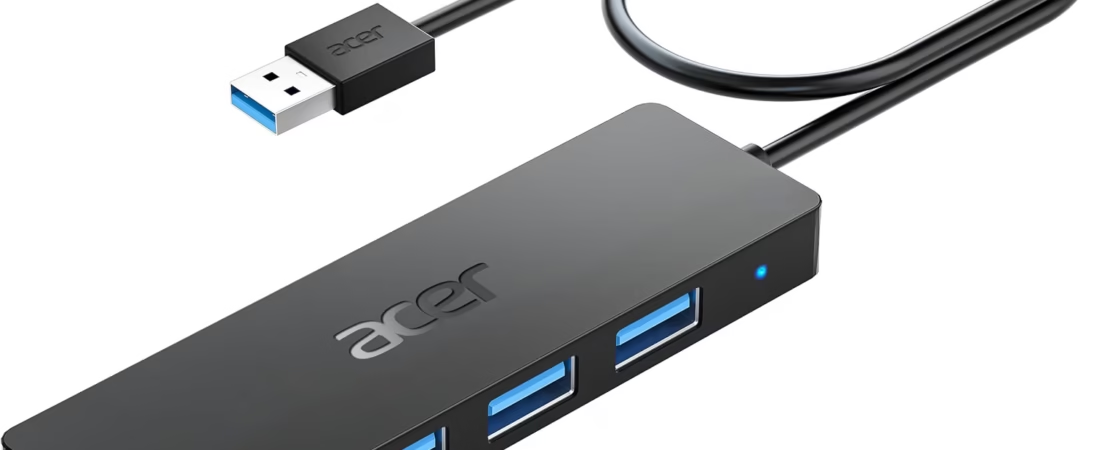
The Acer USB Hub 4 Ports, Multiple USB 3.0 Hub, USB-A Splitter for Laptop/PC with a 2-foot cable is designed around this purpose. It provides four USB-A ports through a single computer connection, with the product described as supporting USB 3.0 connectivity. The 2-foot cable gives users additional flexibility when positioning the hub relative to a laptop or desktop computer.
A device like this is useful for people who need more USB connections without installing additional hardware inside a computer. It can also make desk organization more flexible because peripherals do not necessarily need to be connected directly beside the computer’s main USB ports.
However, a USB hub is not simply a device that multiplies every aspect of a USB port. The computer’s original USB connection still determines important limitations, including available power and data bandwidth. Connected devices also share the resources provided by that single host connection.
Understanding these characteristics can help users decide how to incorporate a four-port USB 3.0 hub into a home office, workstation, classroom, travel setup, or everyday computer environment.
What Is a USB Hub?
A USB hub is a peripheral that expands one USB connection into multiple USB ports.
The basic arrangement is simple. The computer connects to the hub through a single USB cable. Additional USB devices can then be connected to the hub.
For example, instead of occupying four separate computer ports, a user could connect a keyboard, mouse, flash drive, and external accessory through one hub.
The hub communicates with the computer and manages the connected USB devices.
This makes a USB hub especially useful when a computer has limited ports.
Many modern laptops prioritize slim designs and portability, which can mean fewer physical ports than older desktop-oriented computers. A compact hub can help address this limitation without requiring a docking station or desktop expansion card.
The Acer model discussed here uses USB-A connectivity and provides four additional USB-A ports.
Key Features
Four USB Ports
The primary feature is the availability of four USB ports from a single computer connection.
This provides additional connectivity for compatible USB peripherals.
A user might connect several low-power devices at once, such as:
- Keyboard
- Mouse
- USB flash drive
- Card reader
- Wired controller
- Printer
- Webcam
- USB headset
- External accessories
The actual suitability of simultaneous connections depends on the individual devices and the available power and bandwidth.
Four ports do not mean that each connected device receives a completely independent USB connection to the computer. All devices communicate through the hub’s single host connection.
USB 3.0 Connectivity
The product is described as a multiple USB 3.0 hub.
USB 3.0 is associated with higher data-transfer capabilities than older USB 2.0 connections under supported conditions.
This can be useful for devices where data movement matters, such as USB storage, external drives, and high-speed flash drives.
However, actual transfer performance depends on the entire connection.
The computer’s USB port, the hub, the connected device, the cable, file sizes, storage technology, drivers, and system workload can all influence real-world speeds.
A USB 3.0 hub should therefore be viewed as providing USB 3.0-class connectivity rather than guaranteeing a particular transfer speed for every device.
USB-A Design
The hub uses USB-A ports.
USB-A remains widely used for computer peripherals, storage devices, printers, keyboards, mice, and many other accessories.
The advantage of USB-A compatibility is that users with existing USB-A peripherals can connect them without replacing those accessories.
The host connection also matters. Users should check what type of USB port their laptop or desktop provides before choosing a hub.
A USB-A hub is most straightforward when the computer has a compatible USB-A host port.
If a laptop only has USB-C ports, an appropriate USB-C-to-USB-A adapter or a USB-C hub may be required instead.
Two-Foot Cable
The product includes a 2-foot cable.
Cable length can influence how conveniently a hub fits into a workspace.
A very short cable may force the hub to remain directly beside the computer. A somewhat longer cable can allow the hub to be positioned on a desk where connected devices are easier to reach.
The 2-foot format can be useful for desktop setups, laptop workstations, and situations where the computer’s USB port is positioned away from the ideal location for connected peripherals.
Cable management remains important. The cable should not cross areas where it can be pulled accidentally or interfere with other equipment.
Portable Form Factor
A four-port USB hub can be useful for people who move between locations.
Instead of carrying several adapters for individual devices, one hub can provide multiple USB-A connections from a single host port.
Students, travelers, remote workers, and people who use different workstations may find this arrangement convenient.
Portability is particularly useful when working with laptops because the hub can remain in a laptop bag until additional connectivity is required.
Understanding USB 3.0
The term USB 3.0 refers to a generation of USB technology designed to support faster data transfer than earlier USB 2.0 technology.
USB 3.0 is also commonly associated with the term USB 3.1 Gen 1 and has been marketed under various naming conventions over time.
One important practical point is that USB generations describe capabilities rather than guaranteed real-world file-transfer results.
Suppose a high-speed external storage device is connected to the hub. The device may support fast transfers, but the actual result can be influenced by the computer’s USB controller, the storage device itself, file sizes, operating-system activity, and other connected devices.
If several devices are transferring data simultaneously through the same hub, they share the bandwidth available through the hub’s host connection.
This is normal USB hub behavior.
How It Can Be Used
Expanding a Laptop Workspace
A laptop may have a limited number of USB-A ports.
A four-port hub can expand one compatible USB connection into several connections for a workstation.
For example, a user might connect a keyboard, mouse, USB headset, and flash drive without repeatedly swapping cables.
This can be particularly useful when the laptop is being used as a desktop replacement.
Connecting a Keyboard and Mouse
A keyboard and mouse are among the simplest devices to use with a USB hub.
If both peripherals use USB-A connections, they can occupy two of the hub’s available ports.
The remaining ports can be used for temporary accessories.
For office work, this can reduce the need to repeatedly reach behind or around a computer to access USB ports.
Using USB Flash Drives
USB flash drives are commonly used for transferring documents, photographs, videos, installers, and other files.
A USB hub provides additional access when the computer’s built-in ports are already occupied.
If a flash drive supports USB 3.0 or a later compatible standard, connecting it to an appropriate USB 3.x port can provide the higher-speed connection the device is designed to use.
The actual transfer rate still depends on the flash drive and computer.
Connecting External Storage
External hard drives and solid-state drives can also use USB connections.
A hub can make it easier to connect external storage when the computer has limited ports.
However, power requirements deserve attention.
Some external storage devices draw more power than simple peripherals. If a bus-powered device does not receive enough power through the hub and host connection, it may disconnect, fail to initialize, or behave inconsistently.
For demanding external storage setups, a powered USB hub or direct computer connection may be more appropriate.
Connecting a Printer
Many printers use USB-A connections for wired computer connectivity.
A hub can provide a convenient port for a printer when the computer’s built-in USB ports are already occupied.
Because printing usually does not require continuous high-speed data transfer, this can be a practical everyday use.
Connecting a Webcam
A USB webcam can be connected through a compatible hub.
This can be useful for video calls, online classes, remote work, or streaming.
However, users should consider bandwidth if several high-data-rate devices are connected simultaneously.
A webcam operating alongside external storage or another high-bandwidth peripheral may share the available host connection.
USB Headsets and Audio Accessories
Many wired headsets use USB connections for audio and microphone functions.
A hub can provide another convenient connection point, particularly on a laptop positioned farther away from the user.
For ordinary office communication, a USB hub can simplify cable organization.
Gaming Accessories
Gaming setups can involve several USB peripherals, including keyboards, mice, controllers, headsets, and other accessories.
A four-port hub can provide additional connections when the computer has limited ports.
Gamers should be aware that high-performance accessories can have different power or data requirements. If a particular device behaves inconsistently through a hub, connecting it directly to the computer may help determine whether the hub is involved.
Home Office Organization
A USB hub can help create a cleaner desk arrangement.
Instead of reaching toward the computer every time a temporary device needs to be connected, the hub can be positioned within easier reach.
The 2-foot cable can provide some freedom to place the hub in a more convenient location.
This can be particularly useful when the computer is mounted underneath a desk, positioned on a stand, or placed farther from the user’s main workspace.
Who It May Be Suitable For
Laptop Users
Laptop owners with limited USB-A connectivity are one of the most obvious audiences for a four-port hub.
It can provide additional connections without requiring internal modifications.
Home Office Users
People working from home may connect multiple USB peripherals every day.
A keyboard, mouse, headset, webcam, printer, and external storage device can quickly consume available ports.
A hub can provide an additional layer of organization.
Students
Students frequently move between classrooms, dormitories, libraries, and home workstations.
A compact hub can be carried with a laptop and used when additional USB ports are needed.
Remote Workers
Remote workers may connect a laptop to multiple accessories for extended work sessions.
The hub can help provide convenient access to several USB-A peripherals.
Travelers
A small USB hub can reduce the number of individual adapters needed when traveling with multiple USB-A accessories.
Its usefulness depends on the devices being carried and the type of ports available on the travel computer.
Desktop PC Users
Desktop computers can also benefit from additional USB ports, particularly when existing ports are occupied or difficult to reach.
A hub can be placed on a desk for easier access to temporary accessories.
Important Things to Consider
USB Hub Bandwidth Is Shared
One of the most important concepts to understand is shared bandwidth.
The hub connects to the computer through one host connection.
When multiple devices are communicating at the same time, they share the bandwidth available through that connection.
For example, transferring files to an external drive while simultaneously using another high-speed storage device can divide available throughput.
This does not necessarily create a problem for ordinary peripherals.
Keyboards, mice, printers, and many other devices use relatively modest amounts of data.
The limitation becomes more relevant when multiple high-speed storage or high-bandwidth devices are used simultaneously.
Power Availability
A typical USB hub of this type is powered through the computer’s USB connection rather than using a separate AC power adapter.
This is convenient because there is no additional power brick.
However, the available power is limited by the host connection and USB specifications.
Low-power peripherals are generally easier to operate through a bus-powered hub.
Devices that require substantial power may work better when connected directly to the computer or through a powered USB hub designed for higher-power applications.
Not Every USB Device Has the Same Requirements
USB devices can vary considerably.
A keyboard may require very little power.
A large external hard drive may require more.
A webcam can place a greater demand on data bandwidth than a mouse.
A USB-powered light or other accessory may draw continuous power.
Understanding these differences can help users decide which devices should be connected through the hub.
USB-A and USB-C Are Different Connectors
A USB-A hub cannot automatically be treated as a USB-C hub.
USB-A refers to the connector shape used on the hub’s downstream ports and, depending on the model, the host connection.
USB-C is a different physical connector.
Some newer laptops have transitioned toward USB-C, so users should inspect their computer before purchasing a USB-A hub.
If the laptop has only USB-C ports, a USB-C hub with appropriate USB-A outputs may be a more direct solution.
Data Transfer Speed Depends on the Entire Chain
If a flash drive is advertised as supporting high-speed USB transfer, connecting it through a hub does not guarantee that exact speed.
The host port, hub, cable, storage device, operating system, and workload all contribute to the result.
A slower USB device can also operate through a faster USB port, but it will generally operate according to its own capabilities.
USB standards are designed with backward compatibility in mind, but compatibility does not mean every device will operate at the highest possible speed.
Cable Placement
The 2-foot cable provides additional reach, but cable management still matters.
Avoid routing the cable across areas where it can catch on hands, chairs, bags, or other objects.
Repeatedly pulling on the cable can stress the connector.
For a permanent desktop installation, keeping the hub and cable in a stable position can help reduce accidental movement.
Heat
USB hubs and connected devices can generate some heat during operation.
This is particularly relevant when several devices are connected simultaneously.
Avoid covering the hub with clothing, papers, or other materials that could restrict normal airflow.
If a connected device becomes unusually hot, disconnect it and investigate the cause.
External Storage Reliability
External drives can be more sensitive to power and connection stability than simple peripherals.
If an external drive repeatedly disconnects through the hub, try connecting it directly to the computer.
If the problem disappears, the hub’s available power, bandwidth, or connection may be a contributing factor.
Important data should also be backed up rather than relying on one external storage device.
USB Hub vs. USB Docking Station
A USB hub and docking station can look similar, but they serve different purposes.
A basic USB hub primarily expands USB connectivity.
A docking station can combine multiple types of connectivity, potentially including video outputs, Ethernet, audio, card readers, USB ports, and power delivery.
If the only problem is a shortage of USB-A ports, a four-port hub may be simpler.
If the goal is to connect multiple monitors, wired networking, external displays, and other accessories, a full docking station may be more appropriate.
USB Hub vs. USB Extension Cable
A USB extension cable extends an existing port but does not create additional connections.
A hub expands one port into multiple ports.
If a user only needs to move a device farther away from the computer, an extension cable may be sufficient.
If several devices need to be connected simultaneously, a hub provides a different solution.
Four-Port Hub vs. Larger USB Hub
A four-port hub focuses on a relatively compact number of connections.
A larger hub may provide six, seven, ten, or more ports.
More ports can be useful for complex workstations, but they can also increase physical size and cable clutter.
For a typical laptop workstation with several peripherals, four ports may provide a practical balance between connectivity and simplicity.
The appropriate number depends on how many devices are actually used.
Bus-Powered Hub vs. Powered Hub
A bus-powered hub receives its electricity from the host computer.
This keeps the setup portable and eliminates the need for a separate power adapter.
A powered hub has its own external power source.
The latter can be useful when several connected devices require more power than the computer’s USB connection can comfortably provide.
For basic peripherals, a bus-powered hub can be convenient.
For multiple external drives or other demanding devices, a powered solution may be more appropriate.
Practical Setup Examples
Basic Home Office
A laptop can connect to the hub through one USB port.
The four downstream ports can then be used for:
- Keyboard
- Mouse
- Headset
- Webcam
This leaves the laptop’s other ports available for temporary devices.
Student Workspace
A student could use the hub for a mouse, keyboard, flash drive, and printer.
When leaving the workspace, the hub can be disconnected with one cable rather than removing several individual connections.
Desktop Computer
A desktop user could place the hub on the desk and connect frequently used accessories.
The 2-foot cable can help position the hub somewhere accessible instead of requiring the user to reach behind the computer.
Travel Setup
A laptop and compact USB hub can provide a portable workstation.
The hub can remain in the laptop bag and be connected whenever multiple USB-A devices are needed.
Troubleshooting Common USB Hub Problems
A Device Is Not Recognized
Start by disconnecting the device and reconnecting it.
Try another USB port on the hub.
If possible, connect the device directly to the computer.
If the device works directly but not through the hub, power, compatibility, or hub-related issues may be involved.
Multiple Devices Disconnect
If several devices disconnect simultaneously, check the hub’s host connection.
Power limitations can also contribute, particularly with multiple bus-powered devices.
Reducing the number of connected devices can help identify the source.
Transfer Speeds Seem Slow
Check whether the connected device supports USB 3.x.
Verify that the computer’s host port supports the required USB generation.
Try transferring a large file directly to the computer and compare the result with hub-connected operation.
Remember that storage devices have their own performance limitations.
The Hub Works With Some Devices but Not Others
Different USB devices have different power and compatibility requirements.
A simple mouse may work normally while a high-power external drive has problems.
This does not necessarily mean the hub is defective.
The device’s requirements should be considered.
Keeping USB Connections Organized
A USB hub can also help improve workspace organization.
Instead of allowing several cables to stretch across a desk toward different computer ports, accessories can converge at one location.
The hub can be positioned closer to the user’s hands.
Cable clips or other organizational methods can keep individual connections from becoming tangled.
Labeling frequently used cables can also make it easier to identify devices when several similar USB cables are present.
Safe USB Use
USB devices are generally designed for straightforward connection and disconnection, but some situations deserve attention.
Do not force connectors into ports.
If a connector does not fit naturally, verify that it is oriented correctly and that the connector type is appropriate.
Avoid using visibly damaged cables.
Keep liquids away from the computer and connected electronics.
If a device behaves unusually, becomes excessively hot, produces a burning smell, or repeatedly disconnects, disconnect it and investigate rather than continuing to operate it.
For external storage, use the operating system’s safe removal process when appropriate before disconnecting the drive, particularly when data is being written.
Frequently Asked Questions
How many ports does the Acer USB hub provide?
The product is described as a four-port USB hub, providing four additional USB connections for compatible peripherals.
Is it a USB 3.0 hub?
Yes. The product is described as a multiple USB 3.0 hub. Actual transfer performance depends on the computer, connected device, cable, and other factors.
What type of connector does it use?
The hub is designed around USB-A connectivity. Users should verify the host connection on their particular laptop or PC before purchasing.
What is the purpose of the 2-foot cable?
The 2-foot cable provides additional reach between the computer and hub, allowing the hub to be positioned more conveniently on a desk or workstation.
Can I connect a keyboard and mouse at the same time?
Yes. A keyboard and mouse are typical low-power USB peripherals that can be connected through a multi-port USB hub.
Can I connect a USB flash drive?
Yes. A USB flash drive can be connected to a compatible port. If the flash drive supports USB 3.x, the computer and hub should also support the relevant standard to take advantage of higher-speed connectivity.
Can I connect an external hard drive?
It may be possible, but external drives can have higher power requirements than simple peripherals. If a drive repeatedly disconnects or fails to operate correctly through the hub, connecting it directly to the computer or using an appropriately powered hub may be preferable.
Can several USB devices be used simultaneously?
Yes, multiple compatible devices can be connected at the same time. They share the available power and data bandwidth provided through the hub’s single host connection.
Does a USB hub increase internet speed?
No. A USB hub expands physical USB connectivity. It does not increase the speed of an internet connection.
Does the hub provide HDMI or video output?
A standard four-port USB hub of this type is designed to expand USB connectivity rather than provide dedicated HDMI or other video outputs. Users who need display connectivity should consider an appropriate docking station or video adapter.
Does it provide Ethernet?
The product is described as a four-port USB hub rather than a network adapter. Ethernet functionality should not be assumed unless specifically included in the product specifications.
Can it charge a smartphone?
USB hubs can provide power to connected devices, but charging performance depends on the hub, host computer, connected phone, cable, and USB power capabilities. A dedicated wall charger is generally a more appropriate choice when charging speed is the primary goal.
Can I use it with a USB-C-only laptop?
A USB-A hub requires an appropriate compatible host connection. If the laptop has only USB-C ports, a USB-C hub with USB-A outputs or a suitable adapter may be necessary.
Will all devices operate at USB 3.0 speed?
No. The actual speed is determined by the capabilities of the host port, hub, connected device, cable, and other conditions. A USB 2.0 device will not become a USB 3.0 device simply because it is connected to a USB 3.0 hub.
Why can a USB device work directly but not through the hub?
Power requirements, bandwidth demands, compatibility, or other system factors can cause this behavior. Testing the device directly on the computer can help identify whether the hub is contributing to the problem.
Is a four-port hub enough for a home office?
It can be sufficient for a basic setup involving several peripherals. A user who needs multiple external drives, monitors, Ethernet, card readers, and other connections may need a larger hub or docking station.
Can I leave the hub connected permanently?
A USB hub can remain connected during normal computer use if the setup is stable and the devices are appropriate for it. Periodically checking cables and connections can help identify developing problems.
Does a USB hub require drivers?
Basic USB hubs generally rely on the operating system’s built-in USB support. Individual connected devices may require their own drivers or software, depending on the device and operating system.
Conclusion
The Acer USB Hub 4 Ports provides a straightforward way to expand USB connectivity on compatible laptops and desktop computers. Its four USB-A ports give users additional connections for everyday peripherals such as keyboards, mice, flash drives, printers, webcams, headsets, and other USB accessories.
The USB 3.0-oriented design makes the hub relevant to devices where data transfer is important, although actual performance depends on the entire USB connection. The host computer, connected peripheral, cable, storage technology, and simultaneous device activity can all influence transfer speeds.
The 2-foot cable adds practical flexibility by allowing the hub to be positioned away from the computer’s built-in USB port. This can be useful on desks where the computer is positioned underneath a monitor, beside a workstation, or somewhere that makes direct USB access inconvenient.
A four-port hub can also simplify everyday cable management. Instead of connecting every peripheral directly to the computer, several accessories can be grouped through one convenient connection point.
At the same time, users should understand the limitations of this category. A USB hub does not create four completely independent host connections. The connected devices share the available bandwidth and power provided by the computer’s single USB connection. This is usually straightforward for low-power peripherals, while high-demand devices such as some external drives may require more consideration.
Compatibility is another important factor. The USB-A design is particularly relevant for computers and accessories that still use USB-A connections. Users with USB-C-only laptops should consider whether they need a different type of hub or an appropriate adapter.
Choosing between a basic four-port hub, a larger USB hub, a powered hub, or a full docking station ultimately depends on the number and type of devices involved. A simple USB expansion solution can be appropriate when the primary need is additional USB-A connectivity, while more complex workstations may require additional features such as video output, Ethernet, power delivery, or card readers.
For home offices, student workstations, travel setups, and desktop environments, a compact multi-port USB hub can provide a practical way to make existing computer connectivity more flexible.
The most useful approach is to consider the devices you actually intend to connect, their power requirements, the USB ports available on your computer, and whether simultaneous high-speed transfers are expected. With those factors understood, a four-port USB hub can become a convenient part of a more organized and adaptable computer setup.